

Keep your custom Anki note type
By the Motoba team · Revised
An Anki note type defines fields, card templates and styling. Motoba calls it a card format. Import your own format, tell Motoba how to fill its fields and preview the cards before sending. You do not have to reduce an existing note to a fixed front/back pair.
Before you start
- A note type already available in your desktop Anki profile.
- AnkiConnect linked on the same computer for direct import.
- A backup of important notes before changing fields or templates.
Step by step
Import the existing format
Bring in the intended deck and note type, either through the Anki import flow on a linked computer or as an .apkg file with Import a deck file. Select the correct profile and format; inspect the field names and order, front/back templates and styling in Card formats before generating.
Describe each field’s role
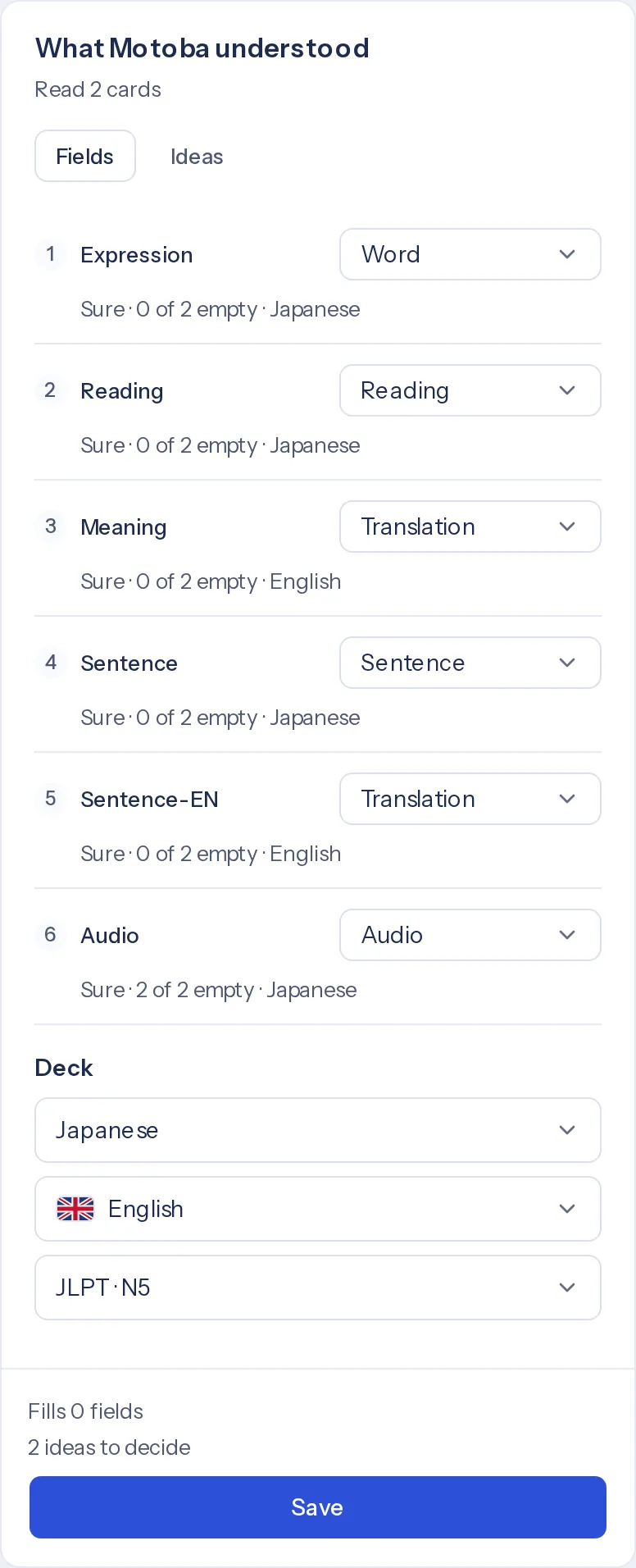
After the import, Continue setup opens How Motoba reads your cards, where Read the fields proposes a role for each field: word, reading, translation, sentence, audio. Check it before saving. Similar names can have different meanings: an Example translation field must not receive the translation of the isolated word.
Make and inspect a small change
In the format editor, adjust the fields or templates, or ask the assistant for a specific change. Review the proposed result and save deliberately. Removing or renaming a field can affect existing notes and template references; verify those effects before synchronization.
Preview before synchronizing
Generate a small set, inspect the front and back, then test audio and any language-specific reading. Check for accidentally visible answers and empty fields. Send a small sample to Anki and inspect it there too: a browser preview cannot guarantee identical rendering on every Anki client.
Tested in Motoba
Run on 25 October 2026 on a local copy of Motoba with the default models: DeepSeek V4 Flash for text, ElevenLabs v4 Turbo for audio. Starting point: an .apkg file with a custom note type, Vocab JP (six fields, black-and-white template), and two notes written by hand, 水 and 本. It was imported as a file, without AnkiConnect.
Motoba reads the six fields
On import, Motoba found Japanese in the Expression field and English explanations; the level was set to JLPT N5. Read the fields then gave each field a role. Meaning and Sentence-EN are both translations: Motoba saved Meaning as the translation of Expression and Sentence-EN as the translation of Sentence. It also suggested filling the empty Audio field from Expression, and the suggestion was accepted.
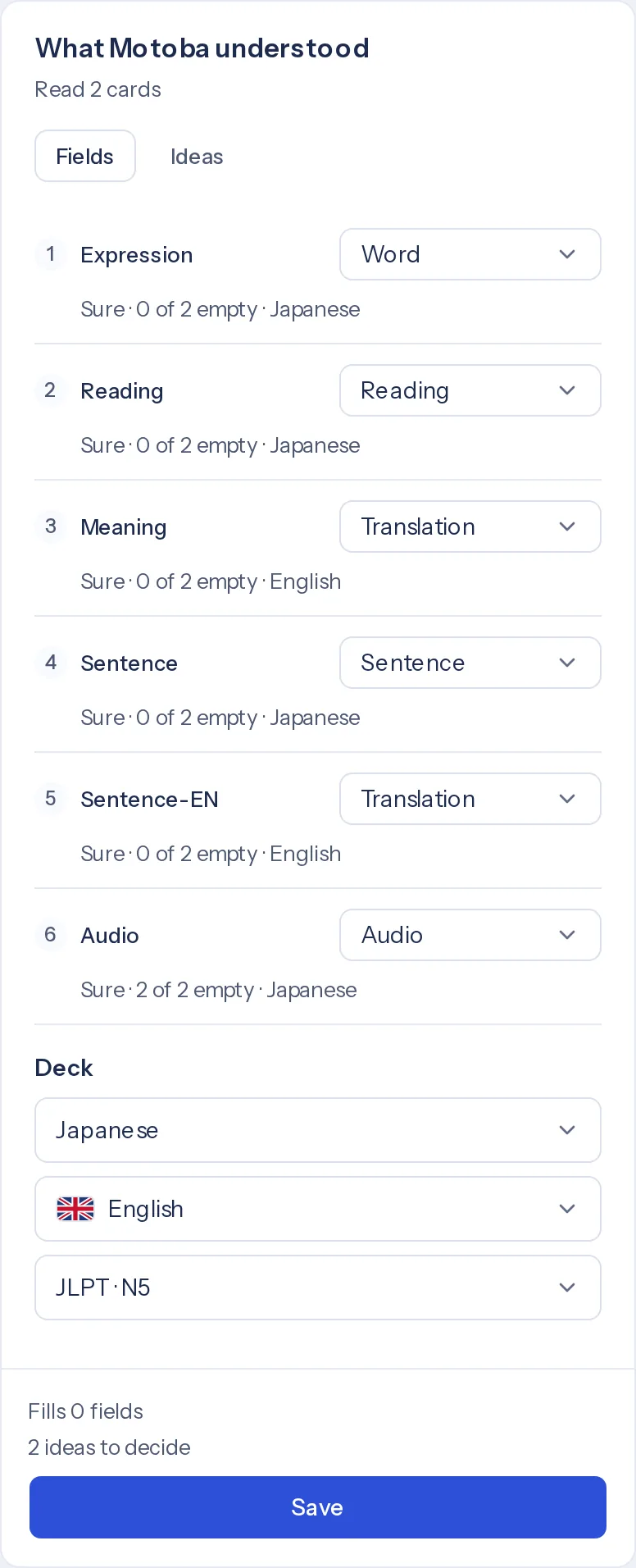
The roles proposed by Read the fields, before saving. Three new words in this format
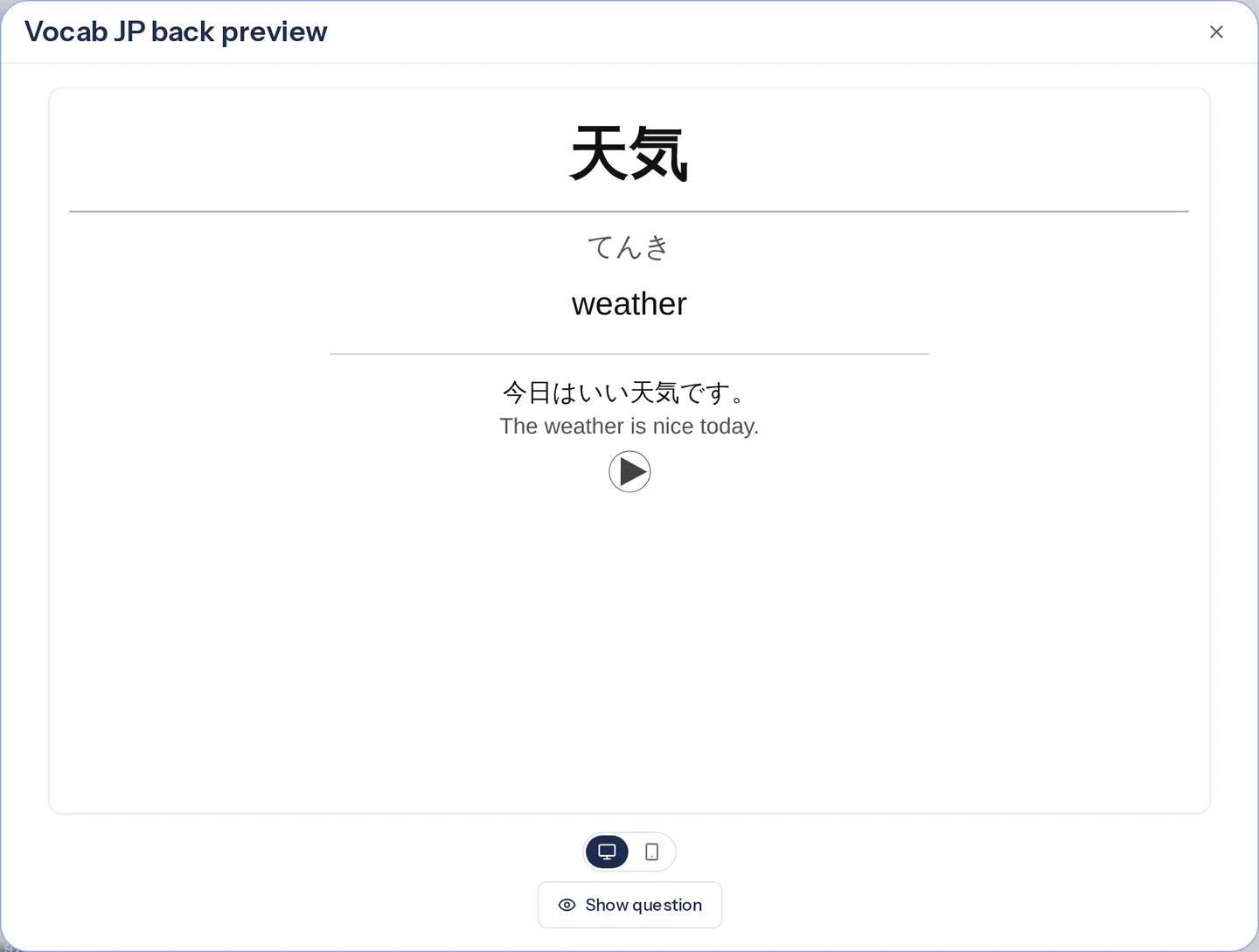
The list was 天気, 勉強 and 友達. Every field received what its role asks for, and nothing needed correcting: Sentence-EN holds the translation of the sentence, never that of the word.
- 天気
- てんき · weather · 今日はいい天気です。 · The weather is nice today.
- 勉強
- べんきょう · study · 毎日日本語を勉強します。 · I study Japanese every day.
- 友達
- ともだち · friend · 友達と映画を見ます。 · I watch a movie with my friend.
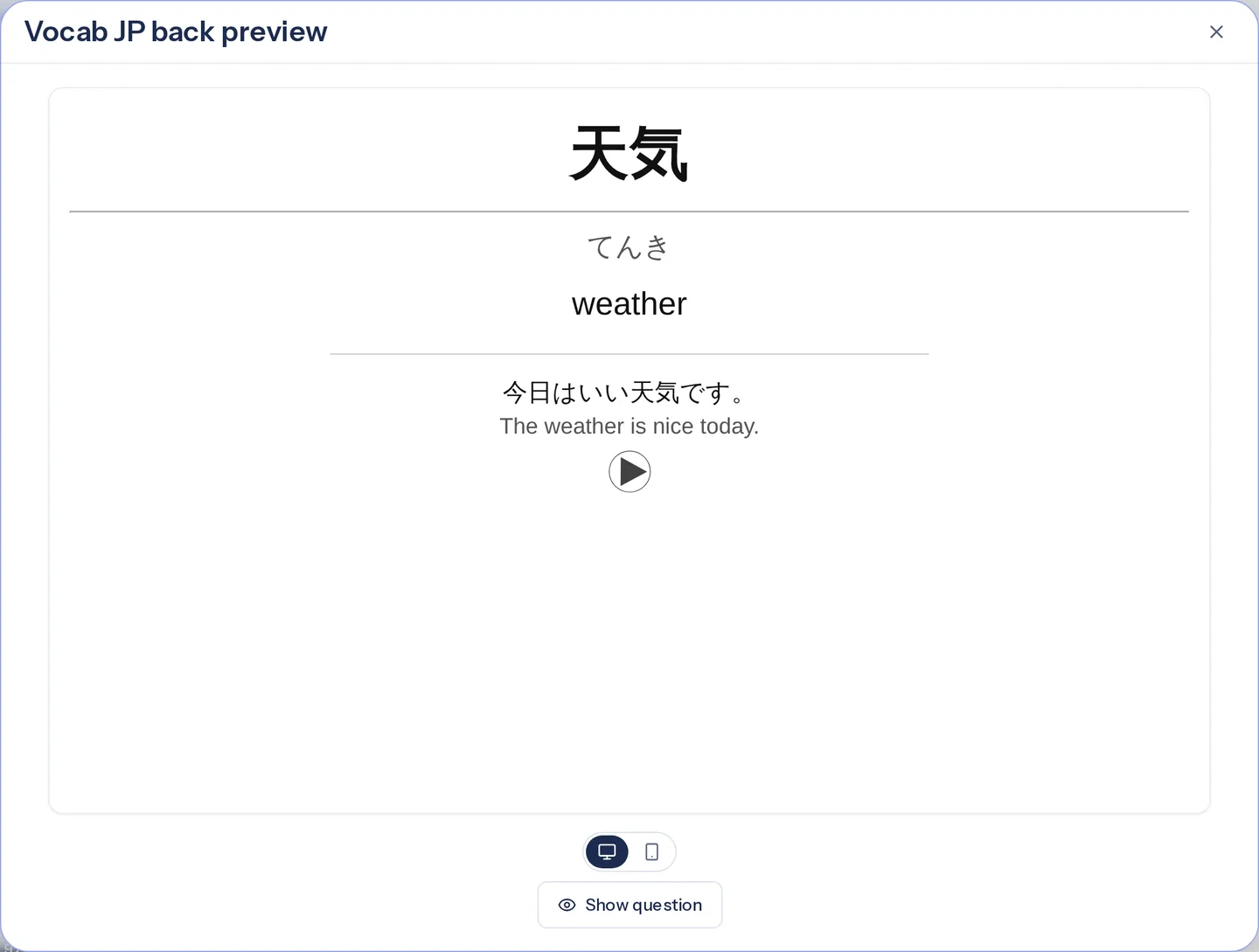
Back of a generated card, rendered with the imported template. The fields in Anki
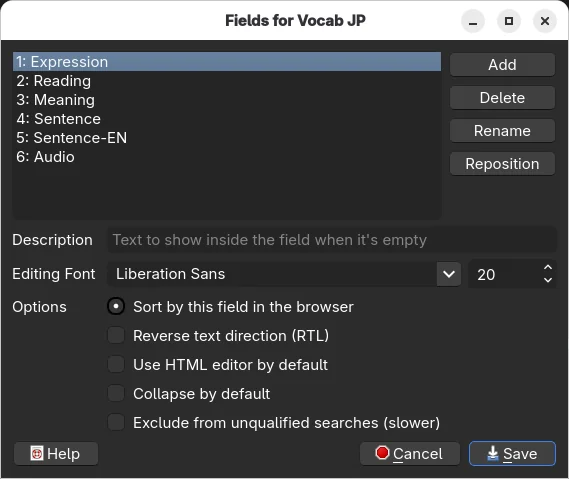
After the .apkg export was imported into Anki desktop, Vocab JP still has its six fields, in the same order.
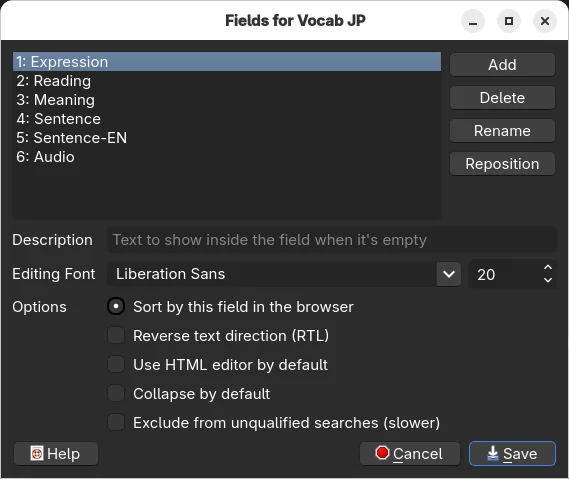
Tools → Manage Note Types → Vocab JP → Fields, in Anki desktop. The card in Anki
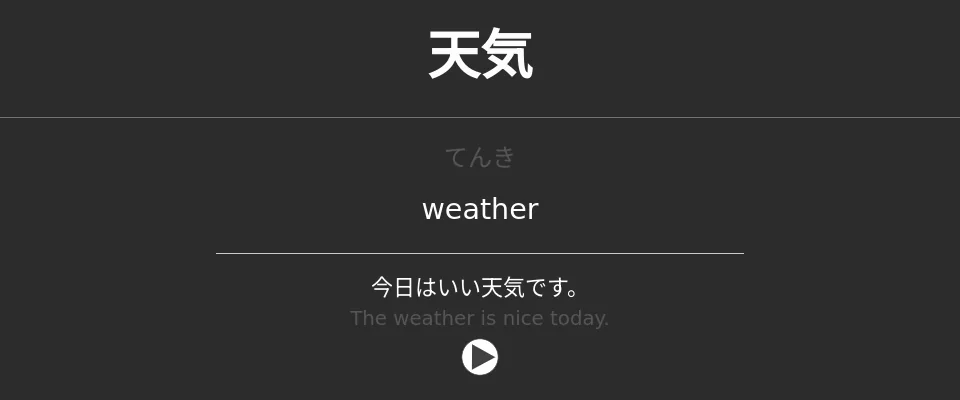
In Anki, the 天気 card uses the imported template with the same content as the Motoba preview, play button included. One thing to fix in the template itself: in night mode, the grey of the reading and of the sentence translation is too dark to read comfortably, so its night-mode rules need a lighter grey.
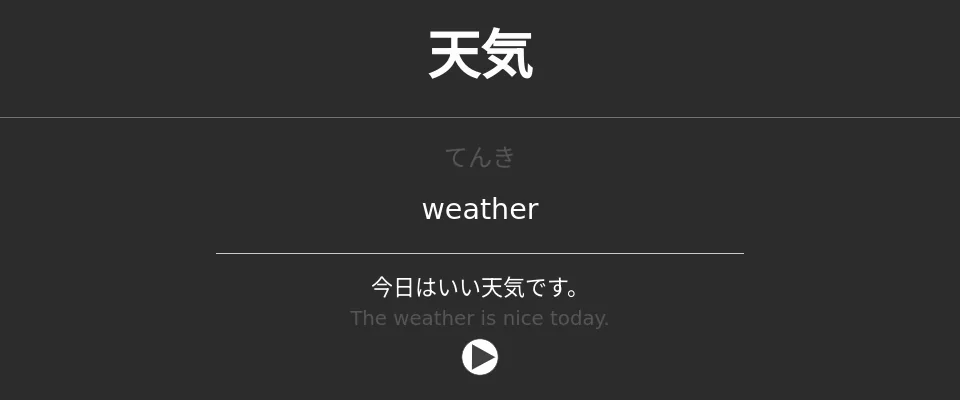
A generated card, imported into Anki desktop (night mode).
What can go wrong?
- Imported HTML and CSS still need checking. Rendering and font availability may differ between desktop Anki, AnkiMobile, AnkiDroid and the Motoba preview.
- An assistant-generated change may be unsuitable. Check the actual template and a populated example before saving it.
- Mobile does not connect directly to AnkiConnect. Prepare the format on desktop when needed, then use .apkg export for the mobile workflow.