

Connect Motoba to Anki on your computer
By the Motoba team · Revised
AnkiConnect lets your browser communicate with Anki on the same computer. Keep desktop Anki open, install its add-on, then authorize Motoba. Your Motoba login does not replace Anki or AnkiWeb, and this connection does not reach a remote computer or a phone.
Before you start
- Desktop Anki installed and open with the intended profile.
- Motoba open in a browser on that same computer.
- Permission to install Anki add-ons and approve the site connection.
Step by step
Install AnkiConnect
In Anki, open Tools → Add-ons → Get Add-ons. Enter 2055492159, confirm installation and restart Anki. Keep it running while using Motoba. Follow the official add-on page for current compatibility requirements.
Authorize Motoba
In Motoba, open Settings → Anki and choose Link Anki. If the browser requests local network access, allow it for the site you trust. In the Anki permission dialog, check the requesting domain and approve Motoba. Only authorize origins you recognize.
If the permission dialog never appears
Open the AnkiConnect add-on configuration. Add https://motoba.app to webCorsOriginList, preserving existing entries and all other settings. The fragment below shows only that setting, not a complete configuration file. Restart Anki. Do not use a wildcard or expose the local service to the internet. Production origin to authorize: https://motoba.app. An origin is the scheme and host, with a port when present; /fr and /en are paths within the same origin.
Check the connection and a small transfer
Return to Settings → Anki and retry. Once connected, send a small reviewed deck. Check its destination, fields and audio in Anki. If disconnected, confirm Anki is open, the correct profile is loaded, the add-on is enabled and the browser permits local connections. A refused origin needs authorization, not repeated sending.
For a phone or another device
AnkiConnect does not run in AnkiMobile or AnkiDroid. Download an .apkg from Motoba and import it with the target app’s import command. Alternatively, send on your computer, then sync Anki through your own AnkiWeb account to your mobile client. Motoba does not perform that AnkiWeb sync for you.
Tested in Motoba
Screens before linking: captured on 25 October 2026 on a local copy of Motoba, in a browser on a computer without Anki. The other screens: same day, on a computer with Anki desktop (English interface) and Chrome, on motoba.app.
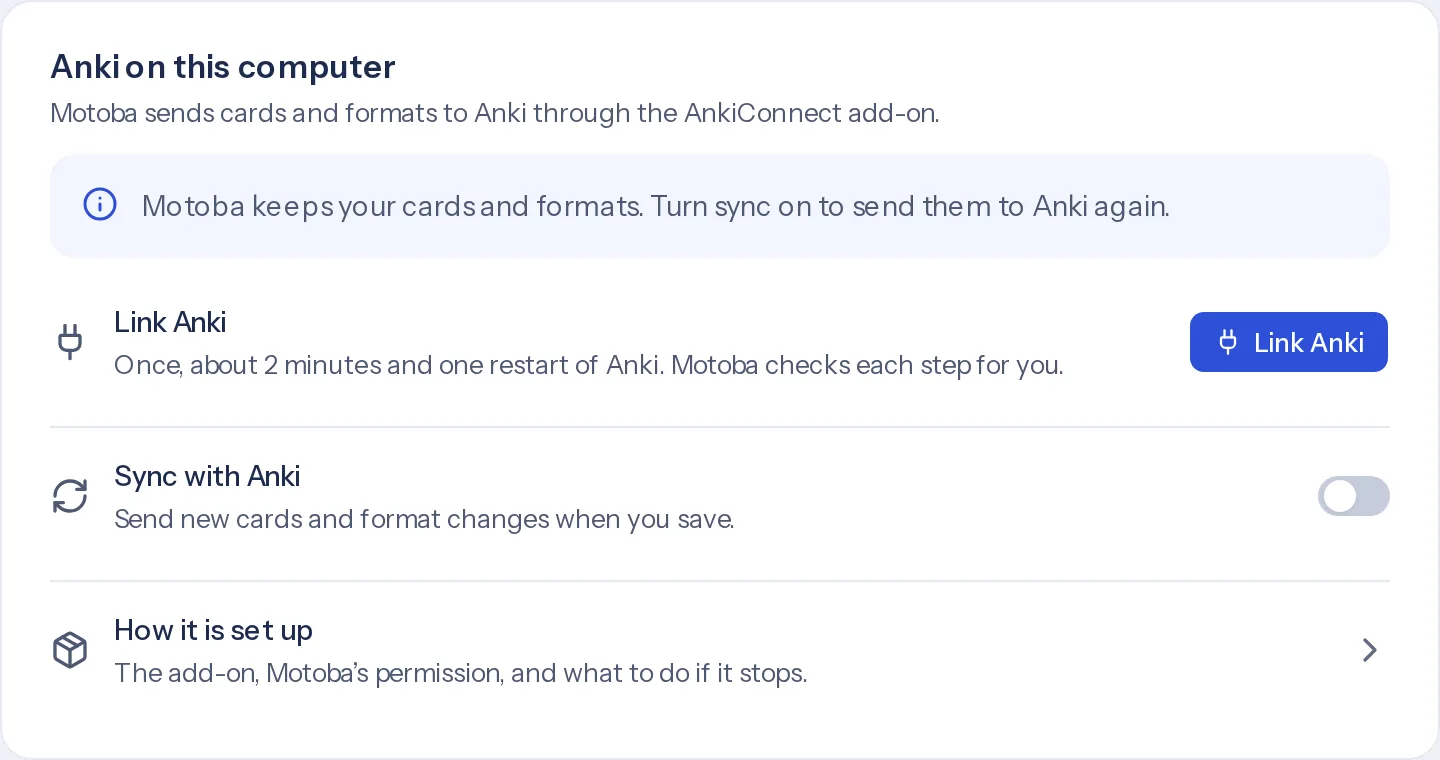
Settings → Anki before linking
Without Anki, the section offers Link Anki and leaves Sync with Anki off. Cards and formats stay in Motoba until the link exists.
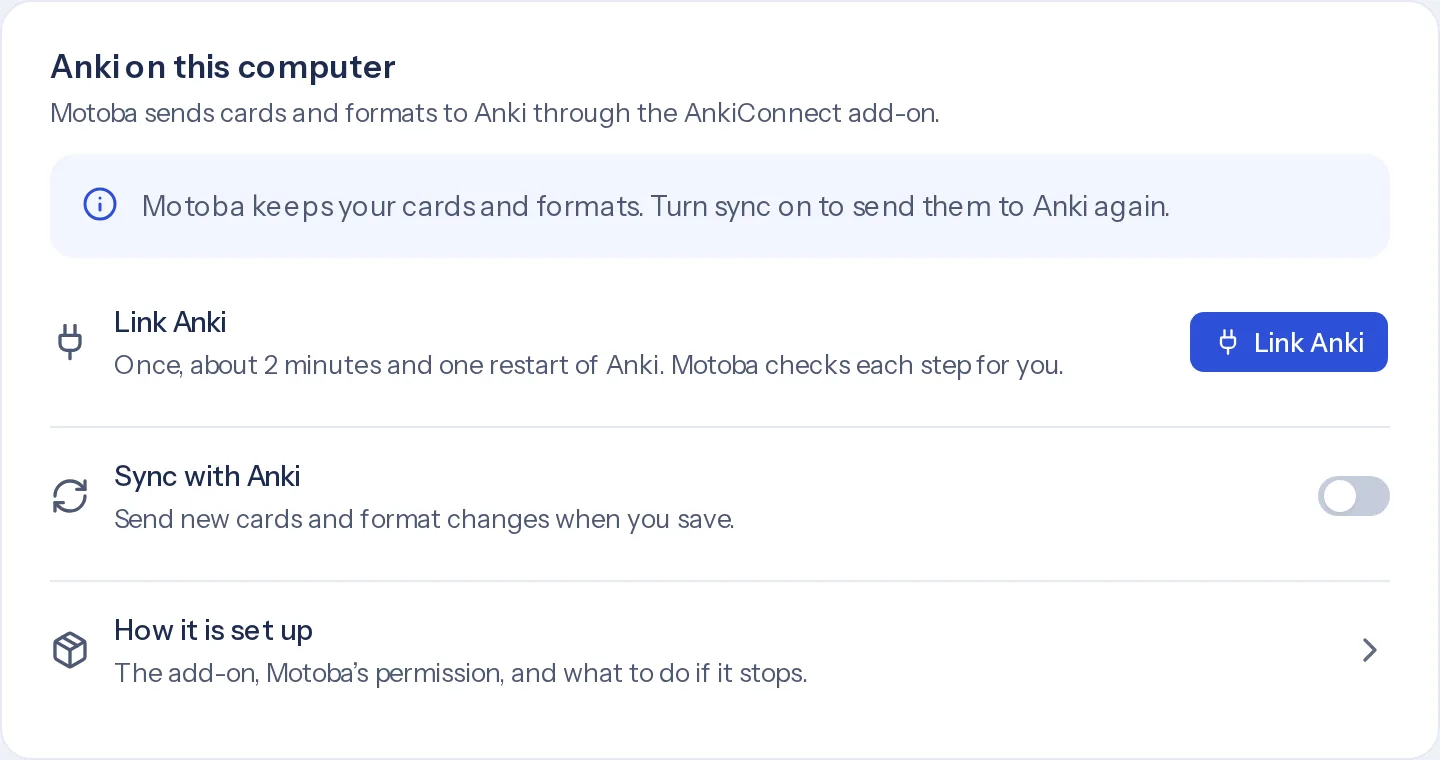
Settings → Anki, before linking. The Link Anki window
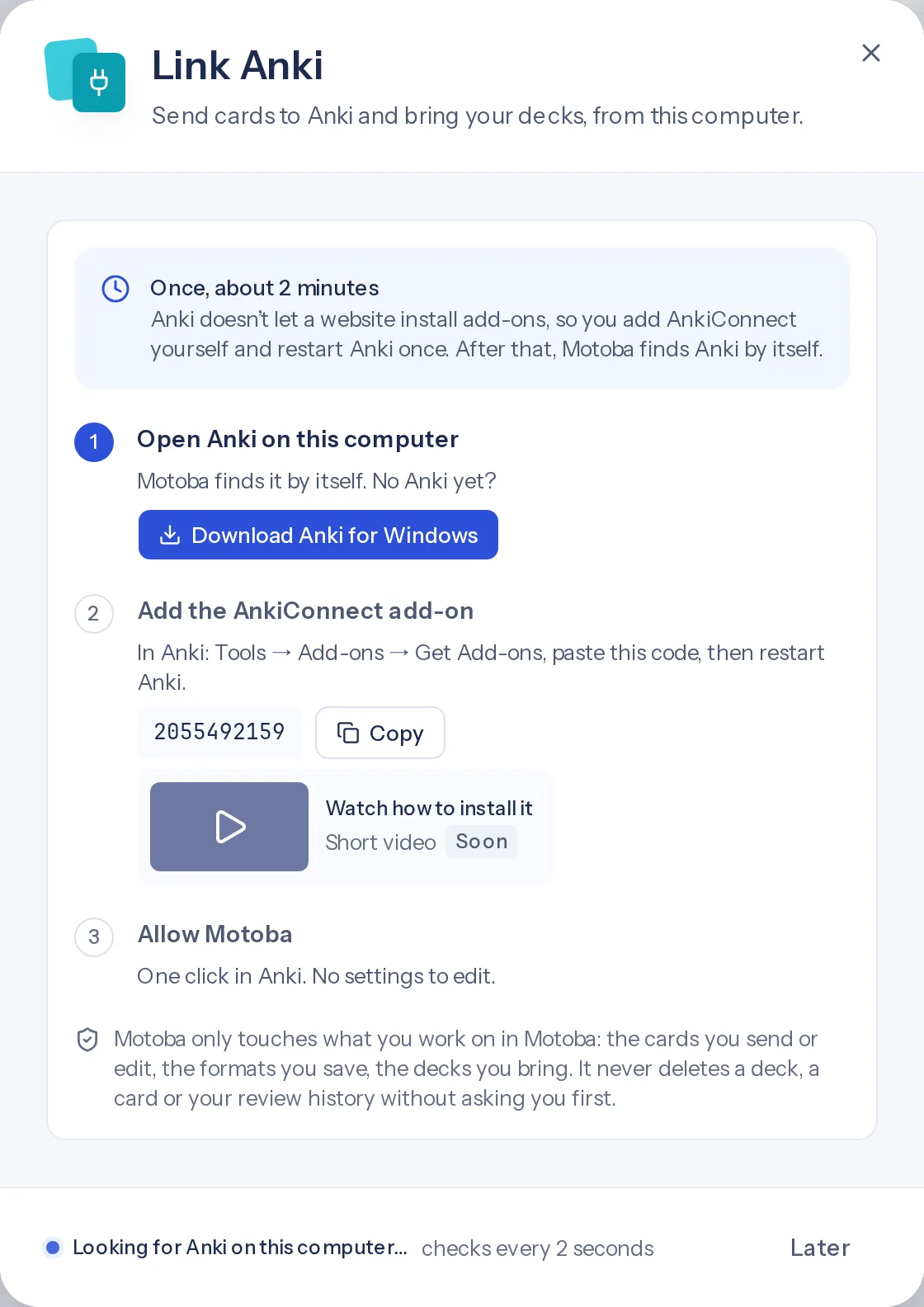
Link Anki opens three steps: open Anki, add AnkiConnect with the code 2055492159 and restart Anki, then allow Motoba. While the window is open, Motoba looks for Anki every 2 seconds.
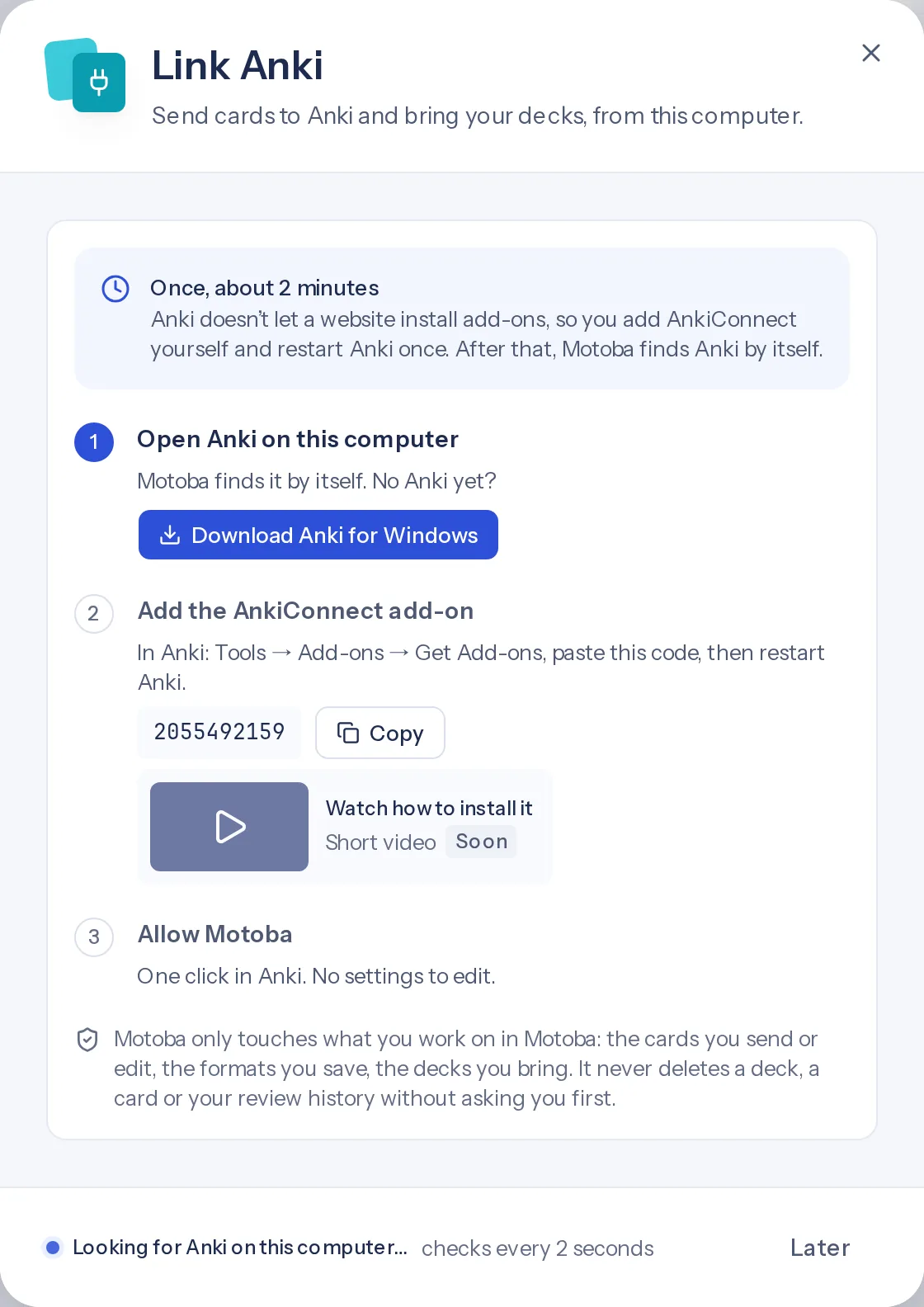
The download button follows the computer's system; this screenshot shows Windows. Installing AnkiConnect
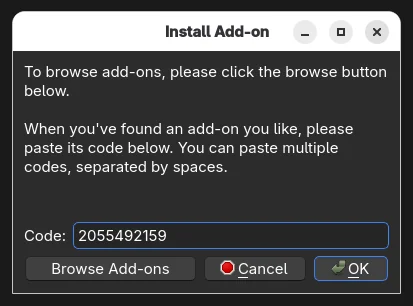
In Anki desktop: Tools → Add-ons → Get Add-ons, paste 2055492159, confirm, then restart Anki.
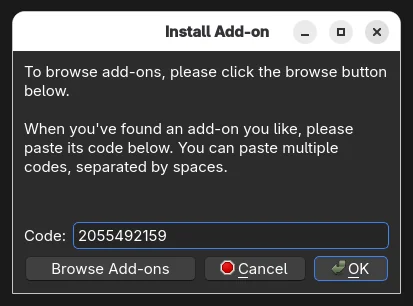
Tools → Add-ons → Get Add-ons, in Anki desktop. Checking that the add-on is enabled
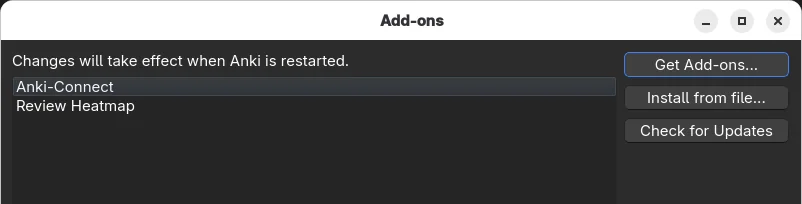
After the restart, Anki-Connect appears in Tools → Add-ons. A disabled add-on is the first thing to check when Motoba cannot find Anki.
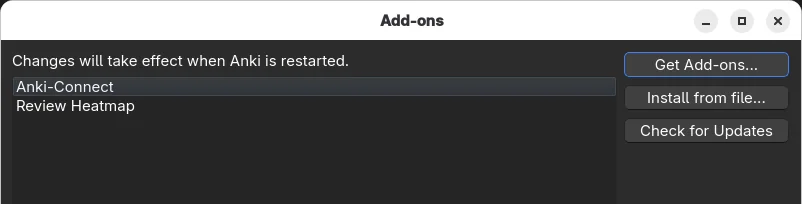
Tools → Add-ons, after restarting Anki. Allowing local access in Chrome
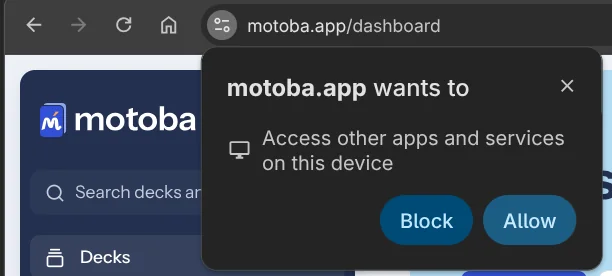
When Motoba first looks for Anki, Chrome asks whether motoba.app may access other apps and services on this device. Answer Allow: if you block it, the browser stops Motoba from reaching Anki.
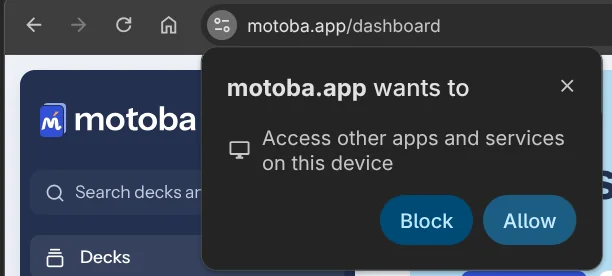
Chrome's local network access prompt, on motoba.app. Motoba finds Anki
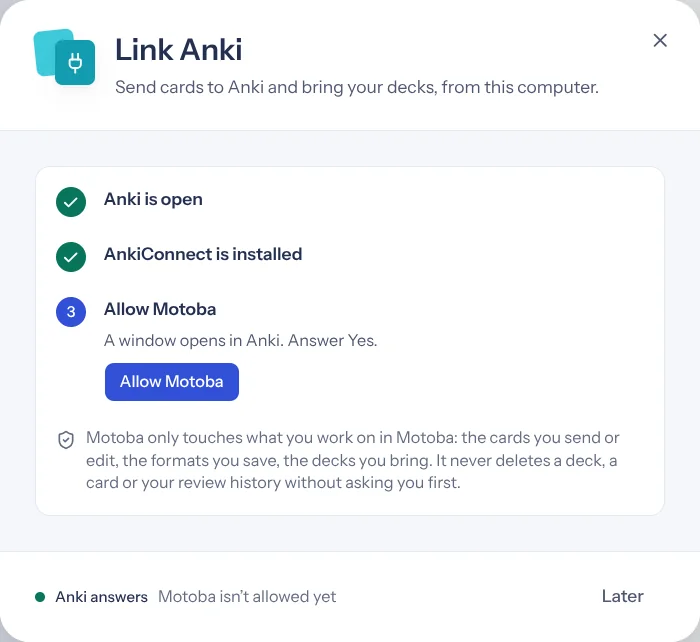
With Anki open and AnkiConnect installed, the Link Anki window ticks Anki is open and AnkiConnect is installed, then offers Allow Motoba. At the bottom, Anki's answer: Motoba isn't allowed yet.
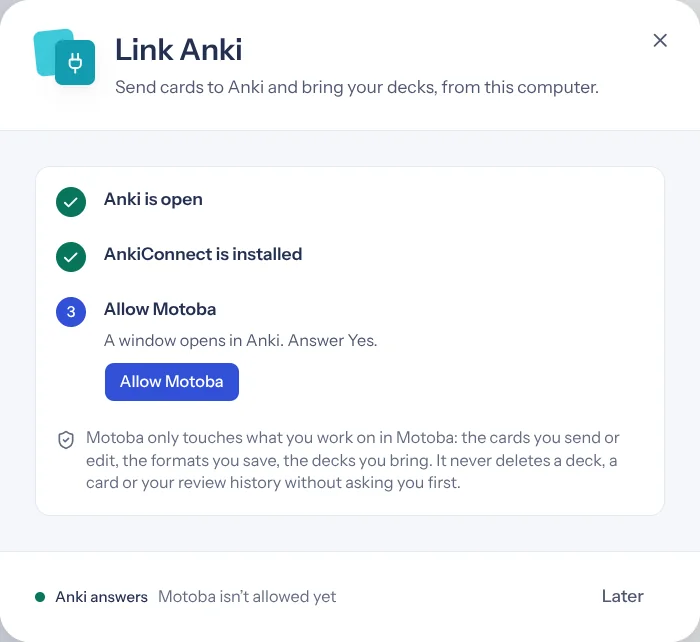
Link Anki once Anki has been found, on motoba.app. Allowing Motoba in Anki
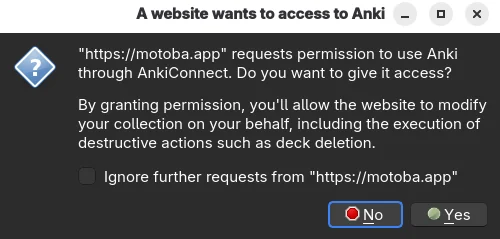
Allow Motoba makes Anki open “A website wants to access to Anki”: “https://motoba.app” requests permission to use Anki through AnkiConnect. The window may open behind the browser, and No has the focus, so Enter refuses. Check the domain, then click Yes.
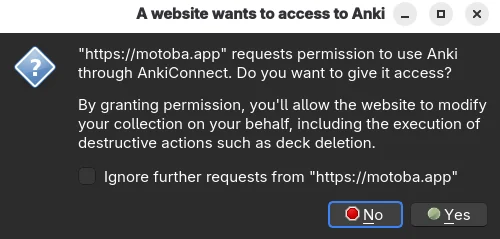
AnkiConnect's permission dialog, in Anki desktop. Anki is linked
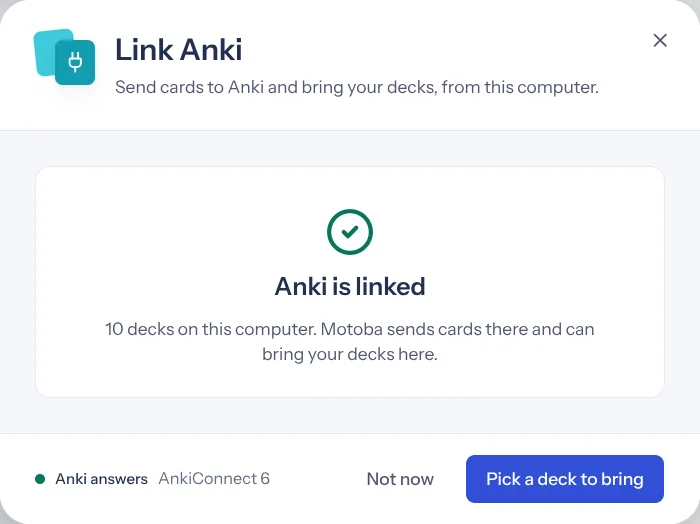
After Yes, the window shows Anki is linked and counts the decks found on this computer, then offers to bring one into Motoba.
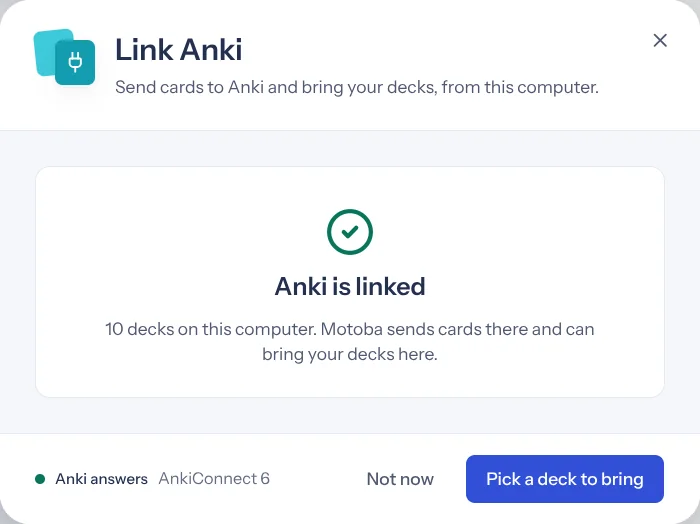
Link Anki after answering Yes, on motoba.app. Settings → Anki once linked
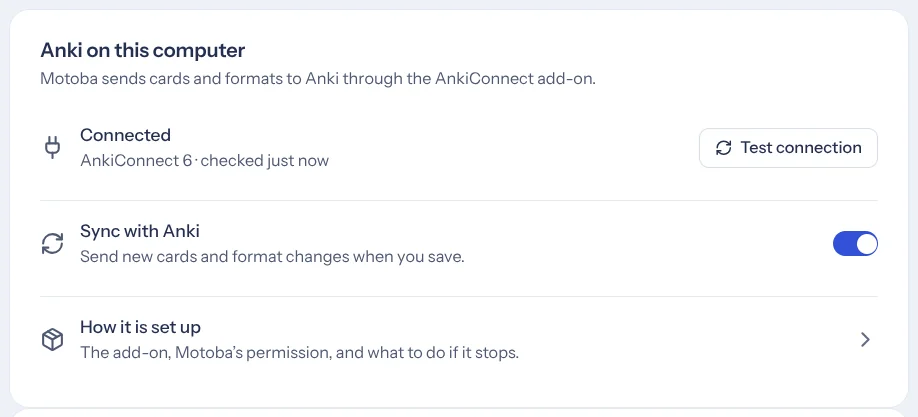
Back in Motoba, Settings → Anki shows Connected, with the AnkiConnect version (6) and the time of the last check. Sync with Anki can then be turned on.
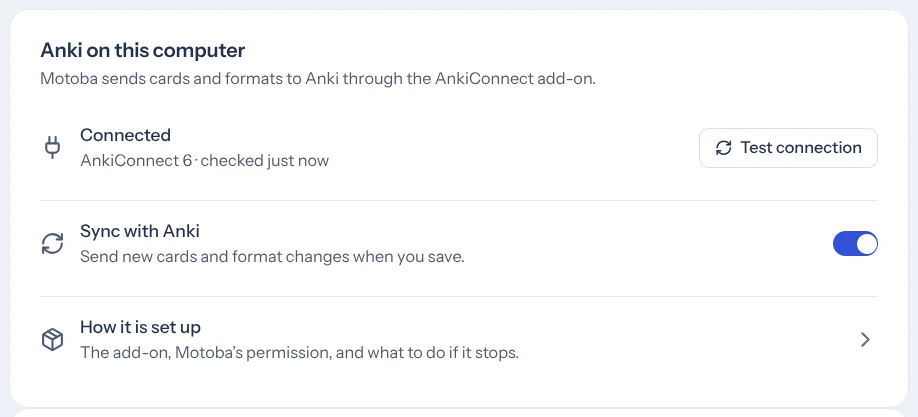
Settings → Anki after linking, on motoba.app.
"webCorsOriginList": [
  "http://localhost",
  "https://motoba.app"
]
What can go wrong?
- Browser, operating system and add-on versions may affect local network permissions. Never disable browser security globally to make a connection work.
- A desktop connection is required for importing a note type directly from Anki. File import is a separate workflow.
- If content has changed in both places, inspect the differences before sending again. Back up important decks in Anki before structural changes.